Showing posts with label application. Show all posts

Thursday, May 19, 2011

Photoshop : Make Photo Vector......


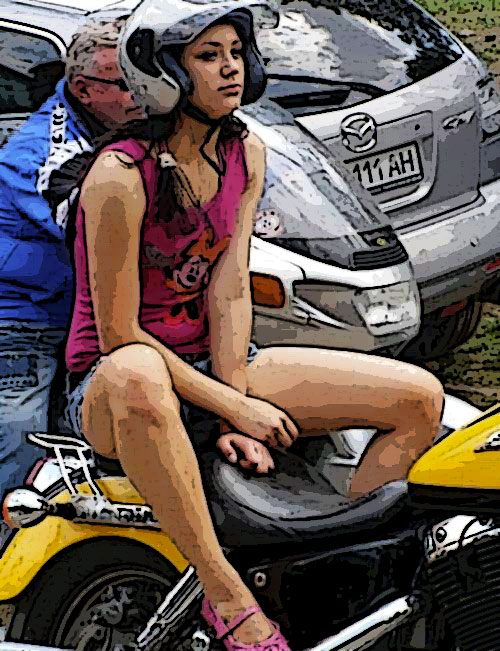
In this tutorial you will learn how to turn an image of a young girl into a artistic illustration. You will require a Basic to intermidiate knowledge of Photoshop and its tools to perform this tutorial

1.cOpen the image
2. To convert it to Grayscale, go to Image > Mode > Grayscale
1
3. We have to make the image darker so more details can be converted to vector art. To do this, go to Image > Adjustments > Brightness/Contrast. Adjust the CONTRAST to 28-30. Now, Press ENTER.
2
3
4. Now we have to give it the Photocopy filter, go to Filter > Sketch > Photocopy
5. In the Photocopy filter menu, provide the attributes shown in the image. You can change it to anything you like, just try to make the edges sharp.
4
5
6. Now remove extra noises using the ERASER tool. Hit E from the keyboard or select the Eraser icon from the Toolbar.
6
Adjust the brush size to 40 by Right Clicking on the image.
7
Erase the noises from the face as shown in the image.
8
7. Now you may have an image like this one. Save it.
9

8. Open Adobe Illustrator. Create a new file. We have to place the Photoshop file now.
9. To place the image onto the Artboard, go to File > Place. Now select the image you edited earlier.
10

10. Select the image. Now go to Object > Live Trace > Tracing Option. Tick the Preview button to see the changes instantly. Change the Threshold to 200.
11
Now go to Object > Expand to break the graphics into lines.
13
You will have a result like this.
12
11. Now remove the extra points you don’t want by selecting them with Direct Selection tool from the left Toolbar and hitting DELETE from the keyboard.
12. Smoothen the edges of the eyebrow, eye, nose and lips. Just tweak around with the Direct Selection tool. I leave it as it is.
13. Now we make it colourful. I am sure you know how to use the Pen tool. Select it from the Toolbar and make path around the face like I do. I am selecting the skin of the throat too so it resembles the face colour.
14
14. Now give the selection a skin colour.
15
15. Do the same as in the step 13, but now do it for the hair and eyes touching up as you go.
16. Finally colorize the lips a bit. You should have a result like the image below.
16
17. Now check what you have done (the before and the after result):
17


Review : miraztutorials.com
Tags : vector photoshop, make photo vector, how to make vector, how to making photo vector, cara membuat vektor photo, cara membuat vector photo dengan photoshop cs4, cara membuat kartun dengan sistem vector, photoshop vector

Wednesday, May 18, 2011

Photoshop : Cartoon Drawing Tutorial ( Very Simple )

This is the simple way, how to make a cartoon with photoshop 


Cartoon Drawing Photoshop Images Effect 
1. Open an image that you would like to manipulate. Make sure your image is in RGB mode. To check this, go to Image under the menu bar - Mode - RGB Color.
Make a duplicate of this layer as you will be working on this layer going forward.


2. Now we will be applying the Poster Edges filter. To do this, go to Filter > Artistic > Poster Edges.


3. After the Poster Edges effect, we will Adjust the Brightness & Contrast with the values: Brightness Value: 10 Contrast: 30.


4. Now we will do an artistic cut out effect to give it that cartoon look. Go to Filter > Artistic > Cut Out. And this is what you get!


Review : photoshopcstutorial.com
Tags : drawing cartoon with photoshop, photoshop tutorial make cartoon, very simple how to make cartoon with photoshop, cara mudah membuat kartun dngan photoshop, cara membuat cartoon/kartun dengan photoshop

Monday, May 9, 2011

Cara Menampilkan Animasi Flash Kedalam Powerpoint

Bingung.....? tidak tahu bagaimana caranya memasukan animasi Flash ke dalam presentasi powerpoint..?? berikut solusinya....


Pertama pastikan dulu Flash Player telah terinstal pada komputer Anda, kemudian ikuti langkah-langkah di bawah ini:


1. Klik Logo Microsoft Office Button di sudut kiri atas 
    Klik "PowerPoint Options" di bagian bawah
   panel pergi ke jendela "PowerPoint Options"  klik "Populer" kolom kiri pilih "Depelover tab in the Ribbon" pada kolom kanan klik "OK" dibawah


2. Pada "Developer" tab pergi ke "Controls" Klik icon palu dan paku untuk "Controls Pilihan"> pergi ke "Kontrol Lebih" jendela


3. Pada "Kontrol Pilihan" pilih jendela "Shockwave Flash Object" dalam daftar klik "OK" di bagian bawah menggunakan pointer Anda untuk menyeret pada slide untuk menarik dan mengubah ukuran kontrol


4. Klik kanan mouse Anda Drag  klik "Properties" pada menu atau klik kanan pergi ke jendela "Properties"


5. Pada  tab abjad klik "Movie" type path drive penuh dalam kolom nilai (sel kosong di samping Movie), termasuk nama file (misalnya C \: a.swf) atau URL (misalnya http://www.a.com/b.swf)


6. Untuk membuat Flash secara otomatis ketika slide ditampilkan, atur "Playing" property menjadi "True"; Untuk menanamkan Flash ke PowerPoint, set "EmbedMovie" properti untuk "True"


7. Akhirnya menutup "Properties" jendela dan menyimpan presentasi Anda.

Pada tab View, pada kelompok Presentasi Views, Anda dapat klik Slide Show atau tekan F5 untuk melihat presentasi Anda.


Cara lainnya dengan bisa menggunakan software Wondershare PPT2Flash 


Berikut Screenshootnya  :


Review : tan640y
Tags : flash ke powerpoint, membuat flash ke dalam powerpoint, cara memasukan flash ke powerpoint, cara menampilkan flash di powerpoint, tutorial membuat flash di powerpoint, cara memasukan flash ke powerpoint, tip and tricks make flash on powerpoint, belajar powerpoint, microsoft powerpoint, tutorial powerpoint 2007, tip dan triks powerpoint 2007, belajar powerpoint 2007, artikel powerpoint 2007

Tuesday, April 19, 2011

Macam-Macam Facebook Application

Anda termasuk orang yang suka berlama-lama dengan Facebook...? rasa-rasanya kurang Asyik kalau tidak mencoba yang satu ini... adalah Facebook Application, dimana suatu Applikasi atau program yang diciptakan untuk menambah gairah dan variasi anda dalam berkreatifitas bersama facebook. Tujuannya adalah " Have Fun " aja....

Berikut beberapa diantaranya :


Lihat Application yang lainnya Click Sini

Lihat Application yang Sedang menjadi Favorite Click Sini


Review : Facebook
Tags : facebook applications, applikasi facebook, macam-macam aplikasi facebook, contoh aplikasi facebook, facebook, macam-macam aplikasi, kids of facebook application, blackberry facebook application, text decoration, text facebook application

Photoshop : How to Create a Flaming Photo Manipulation

In this tutorial, we’ll manipulate a picture so it looks like a woman burning in flames. The idea behind this manipulation was to create a nice looking illustration, only by using simple techniques and tools such as the Brush tool and Warp command. I hope you enjoy the tutorial and try it with your own stock imagery. I need to inform you that this tutorial is written using Photoshop CS3.


Follow Step by Step :


CONCLUSION


Review : http://psd.tutsplus.com

Tags : photoshop tutorial, flaming photo, make manipulation photo, photoshop, how to create a flaming photo, tip and trick photoshop, psd photoshop, photoshop cs3